Liquid Tutorial 2 - Liquid variables and types
Written By Matt Jones
Last updated 10 months ago
Introduction
In this tutorial, we’ll be looking more closely at how you can use Liquid to store and access information or data.
Creating Variables with the Assign Tag
As in most computer code languages, variables are an essential building block of Liquid. They allow you to store a piece of information temporarily, ready to be used later. The assign tag is a common way to create a new variable.
{% assign my_number = 5 %}

My number is {{my_number}}
My number is 5One way to think of this is that we are creating a box with a label on it of “my_number” and we are putting the number 5 in the box. Later, we can access the box when we want to retrieve the contents.
Re-assigning Variables
The assign tag can also be used to re-assign variables to hold a new value. Think of this as keeping the same box, but taking out the original number, throwing it away, and replacing with the new number:
{% assign my_number = 5 %}

{% assign my_number = 7 %}

My number is {{my_number}}
My number is 7Types
Now let’s look at what types of data we can put inside a variable “box”. It’s useful to understand these as it can help to understand in future:
Which filters you can use and why some may not be working
Why certain variables may look the same, but logic is treating them as different
Looking at the next example, the two variables seem to be storing the same data, but there is a subtle difference:
{% assign a = "1" %}
{% assign b = 1 %}
The first variable a, stores data with a String type, using quotes. In this variable, the character 1, is just an ordinary string of characters or words.
The second variable stores data as an integer (whole number) type; there are no quotes around it. This tells Liquid that the contents of the variable will be a number and are ready for calculations.
Here are the full list of available Liquid types, with examples:
Checking Types
Sometimes you may need to check the type in a variable.
One way to check a type is with the | type_of filter.
{% assign a = 3 %}
{% assign b = "3" %}
{{ a | type_of }}
{{ b | type_of }}
Integer
String
Sometimes a quicker way to see both the type and the value of your variable at once is to use the | json filter. This converts the value into a JSON formatted String as it is output, which has the side-effect of adding quotes to Strings and formatting Objects and Arrays with curly braces and square brackets respectively:
{% assign a = 3 %}
{% assign b = "3" %}
{{ a | json }}
{{ b | json }}
3
"3"
We can here tell that a is a number and b is a string. We don’t for sure know if a is an integer or floating point number using this method.
Coercing or Changing Type
Most Liquid filters have an associated type as well. See the following examples:
The platformOS filter docs will always document the intended type of a filter in the input bullet point:
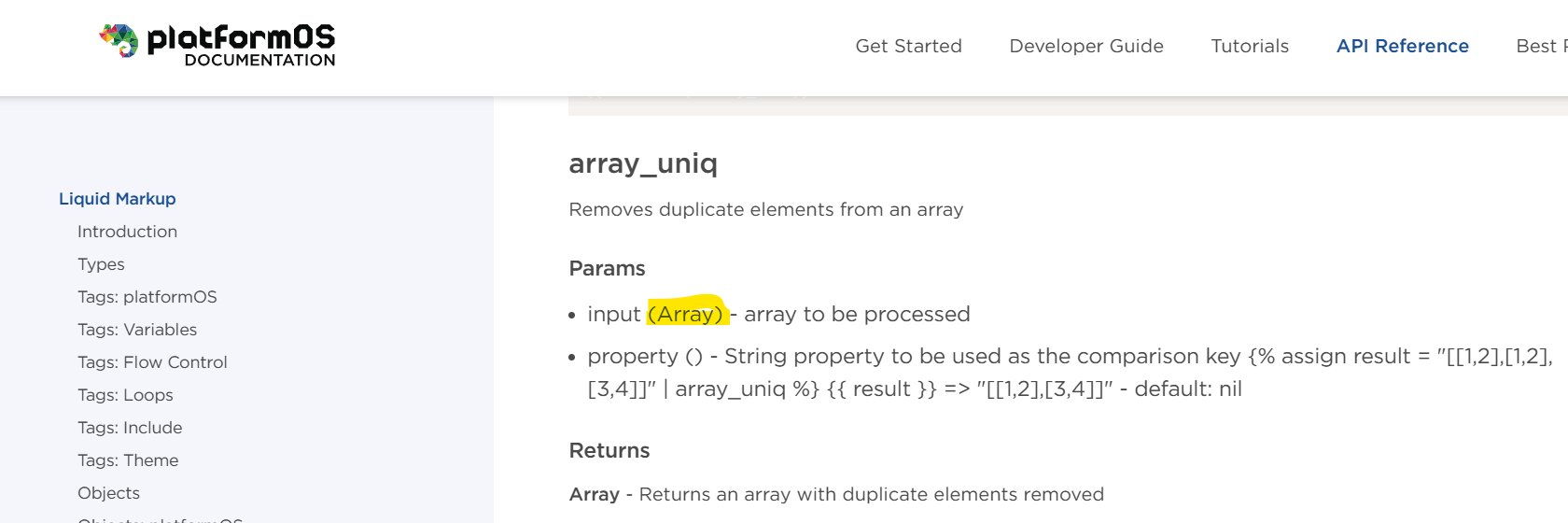
So far, Liquid types work similarly to other languages like JavaScript, where certain methods work on Strings and others on Numbers.
However, Liquid is more unusual when it comes to changing types. There is no special filter deliberately designed to change type. If a filter is used on a variable with the wrong type, it will attempt to coerce the value to the correct type first, before carrying out the filter’s functionality. This is the way you’re intended to change the type of variables, though it can be tricky:
{% assign number_string = "123" %}
{% assign integer = number_string | plus: 0 %}
{% assign array = number_string | split: "" %}
{{number_string | json }}
{{integer | json }}
{{array | json }}
"123"
123
["1","2","3"]
Note that we could also have used | plus: 1 on line 2 to change the type of the variable, but this would have had the side-effect of also changing the value. This side-effect may or may not be desired, depending on what you are aiming to do.
Only some types can be successfully coerced to other types; some combinations are impossible:
{% assign a = "123" %}
{% assign b = "Hello World" %}
{% assign c = "123" | split: "" %}
{% assign d = a | plus: 0 %} {{a | json }} => {{d | json }}
{% assign e = b | plus: 0 %} {{b | json }} => {{e | json }}
{% assign f = c | plus: 0 %} {{c | json }} => {{f | json }}
 "123" => 123
 "Hello World" => 0
 ["1","2","3"] => 0
In this example, while the same filter was used on each line, only the first was successful at changing the type and keeping the value. You can see why Liquid might have an easier time converting “123” to a number than it does “Hello World”. The other values gave unexpected results of storing the added number 0 only and losing all trace of the original value. Sometimes you may instead get a Liquid error. When debugging, it’s very often useful to output the variable before and after the filter, and checking its type to see if an incorrect type caused the bug. Maybe a different filter is needed.
Why might you want to change types without changing the value? The main reason is to interact with other services, for example a Siteglide “include” tag, a GraphQL query or writing JSON to pass to JavaScript or an API call - these services expect a certain type and it’s important to change types to give them what they expect.
In summary, Liquid is what we call a loosely typed language. It is sometimes useful that you can use a filter without changing the type first, but it can produce bugs if you’re not aware of the possible kinds of data you’re working with.
Alternative ways to assign variables
So far we’ve looked at the assign tag to create variables, but you can also use the capture tag as a convenient way to create strings, especially when you want to concatenate characters from multiple sources together and preserve whitespace:
{% assign message_start = "Welcome to the" %}
{% assign location = "Jungle" %}
{% capture full_message %}{{message_start}} {{location}}{% endcapture %}
{{full_message}}
Welcome to the JungleThe parse_json filter and tag with the same name are also useful for creating objects and arrays, but we’ll return to these later.
Activity - Match the correct variables to the filters needed
Below in the example are a set of assigned variables followed by some outputs with muddled filters. Can you re-write the Liquid code so that the expected answers are given?
Leave the | json filter at the end of each output so that we can see the resulting types more clearly.
You can test out your code on an empty page in the Siteglide Admin, under CMS/Pages: Quickstart: Pages
{% comment %}Variables{% endcomment %}

{% assign string = "3" %}
{% assign integer = 3 %}
{% assign float = 0.5 %}
{% assign boolean = false %}
{% assign array = "1233" | split: "" %}

{% comment %}Outputs{% endcomment %}
1) Keep value of the boolean but change type to string, expected answer: "false" => {{ boolean | times: 0.5 | json }}
2) Convert the number to a string, but keep its value unchanged, expected answer: "3" => {{ integer | array_uniq: | json }}
3) Convert the string to a number, but keep its value unchanged, expected answer: 3 => {{ string | round | json }}
4) Remove duplicate values from the array, expected answer: ["1","2","3"] => {{ array | plus: 0 | json }}
5) Halve the number 3, expected answer: 1.5 => {{ integer | downcase | json }}
6) Round the decimal number to the nearest whole number, expected answer: 1 => {{float | downcase | json }}
Answer
Answer
{% comment %}Variables{% endcomment %}

{% assign string = "3" %}
{% assign integer = 3 %}
{% assign float = 0.5 %}
{% assign boolean = false %}
{% assign array = "1233" | split: "" %}

{% comment %}Outputs{% endcomment %}
1) Keep value of the boolean but change type to string, expected answer: "false" => {{ boolean | downcase | json }}
2) Convert the number to a string, but keep its value unchanged, expected answer: "3" => {{ integer | downcase | json }}
3) Convert the string to a number, but keep its value unchanged, expected answer: 3 => {{ string | plus: 0 | json }}
4) Remove duplicate values from the array, expected answer: ["1","2","3"] => {{ array | array_uniq: 0 | json }}
5) Halve the number 3, expected answer: 1.5 => {{ integer | times: 0.5 | json }}
6) Round the decimal number to the nearest whole number, expected answer: 1 => {{float | round: 0 | json }}
Was this helpful?
Still need help? Ask the team