Studio Page Templates
Written By Luke Wakefield
Last updated 3 months ago
As with any Siteglide Page a Studio Page also requires a Page Template. Typically when you install a Studio Library a Page Template will be created.
The Studio UI will automatically show when you go to a Page Template that is using Studio and it’ll give you the same no-code editing experience as with Pages except you just typically edit the header and footer of the page that’s reused across the site:
Layouts (Including Sidebars)
With a Page Template you can select a layout (Studio v1.17 onwards), currently the choices are:
Full width (no Sidebar)
Left Sidebar
Right Sidebar
First click the code icon to the right of the responsive icons in the top white Studio bar, this will show the code view for the Template:
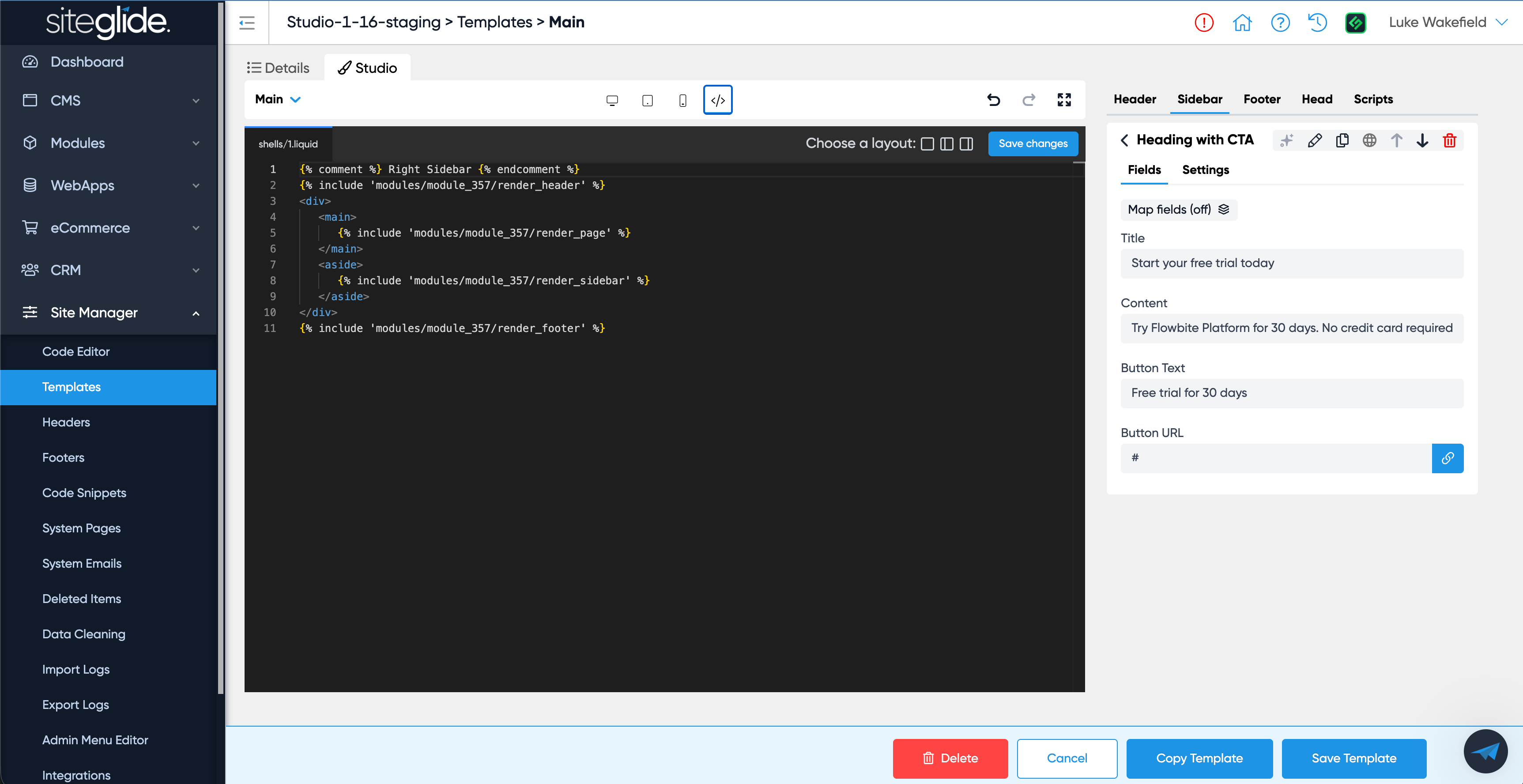
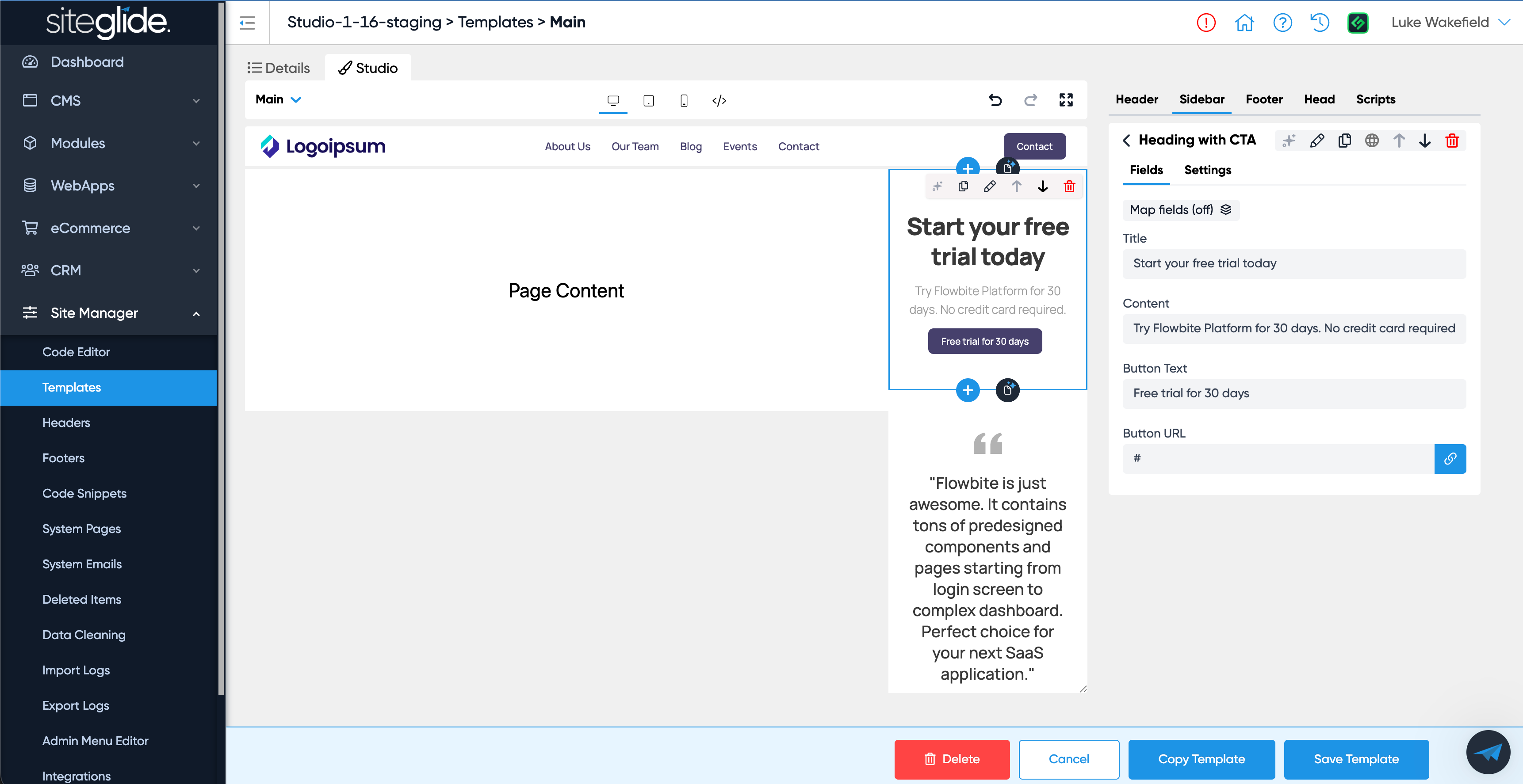
Simply click the corresponding icon and then click the Save Changes button and this will apply the layout. You can add sections to the Sidebar from the Sidebar tab in the right hand side and then edit the content as with any Studio section:
Was this helpful?
Still need help? Ask the team